


Applicable Instructions
This article applies to: Gate Web platform
Preparation before operation: Make sure you are logged into your Gate account and able to receive either email verification codes or Google Authenticator codes
Estimated time required: 3–5 minutes
Objective
This guide will walk you through how to bind and unbind your phone number on the Gate Web platform.
1. Bind Your Phone Number
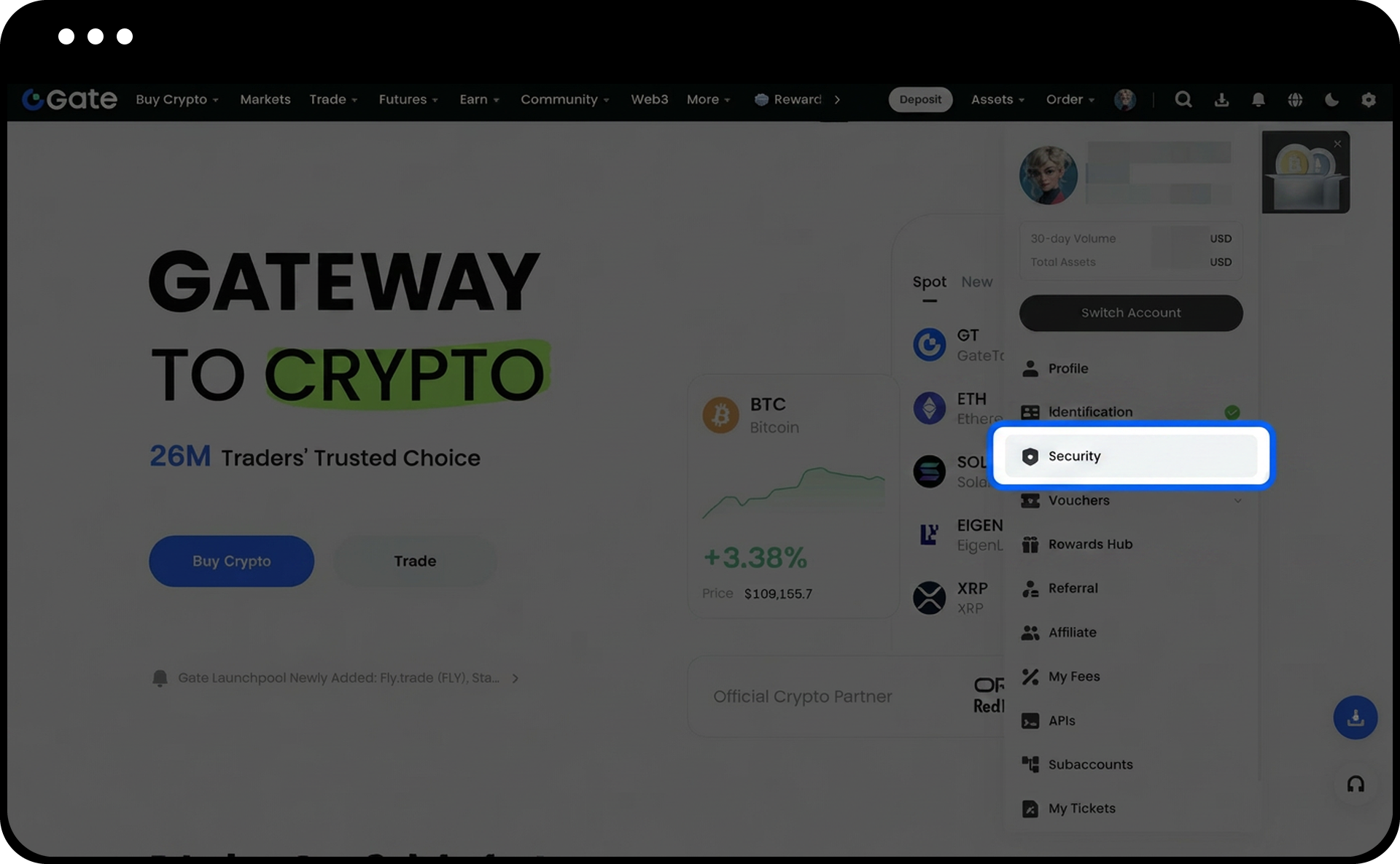
1.After logging into your Gate account, click the “avatar” icon in the upper right corner of the page, then select “Security” from the dropdown menu.
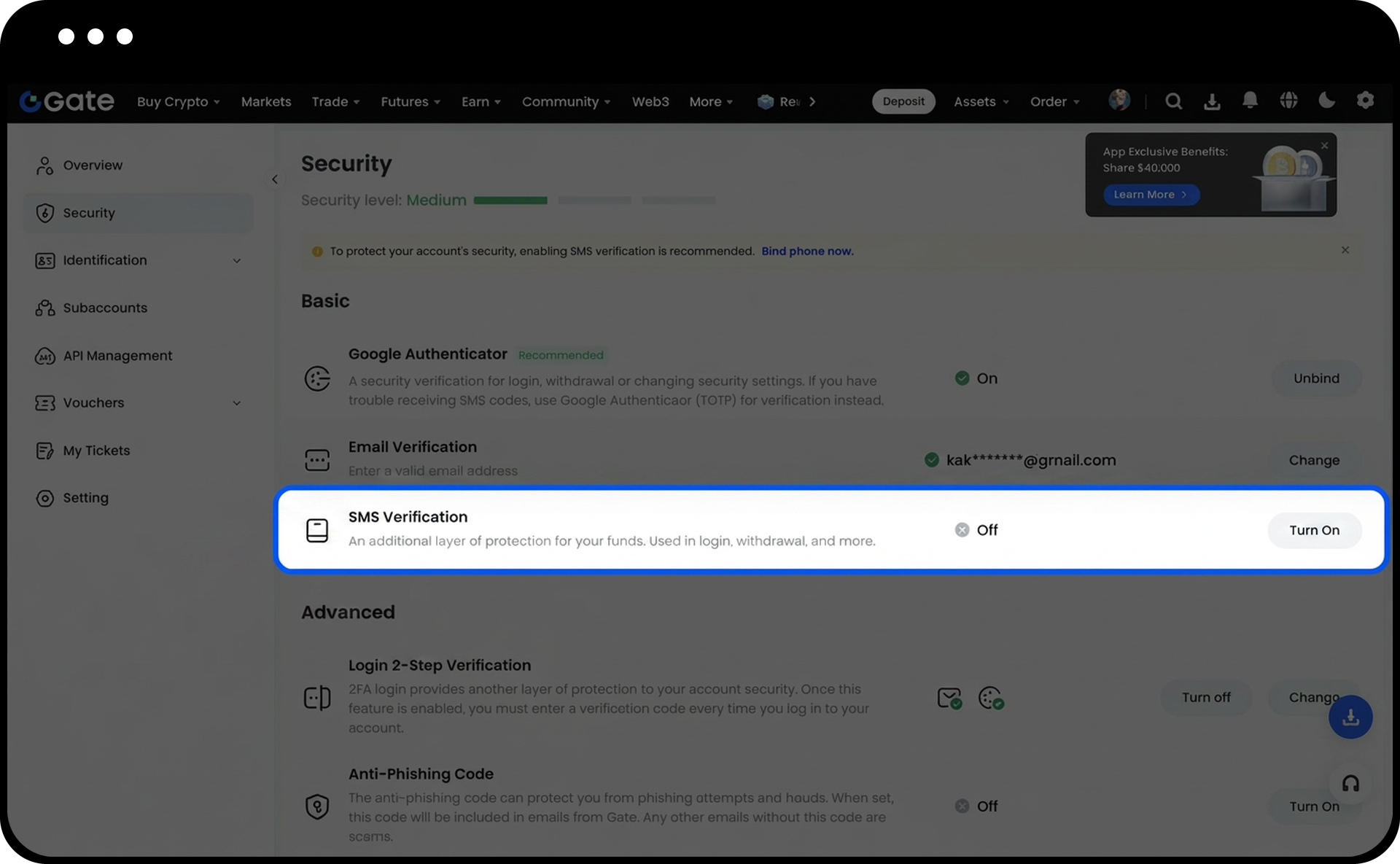
2.In the "Basic Security Items" section, locate "SMS Verification" and click "Turn On" on the right.
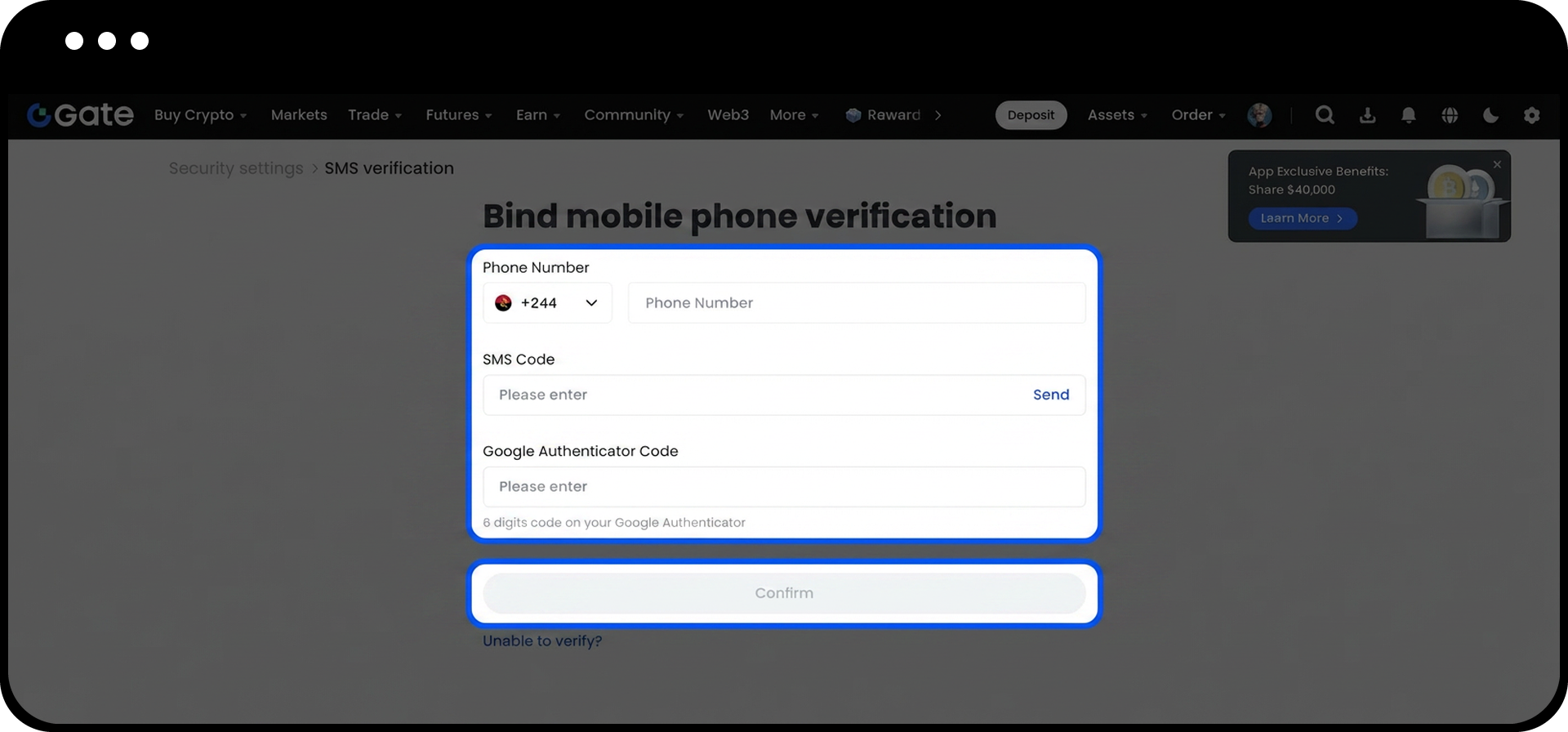
3.Fill in the required information as prompted on the page. Once you’ve confirmed everything is correct, click “Confirm” to complete the binding process.
2. Unbind Your Phone Number (If You Can Receive Verification Codes)
If your current phone number can still receive verification codes, follow these steps to unbind:
1.Log into your Gate account, click the “avatar” in the upper right corner, and go to “Security.”
2.In the “Basic Security Items” section, find “SMS Verification” and click “Unbind” on the right.
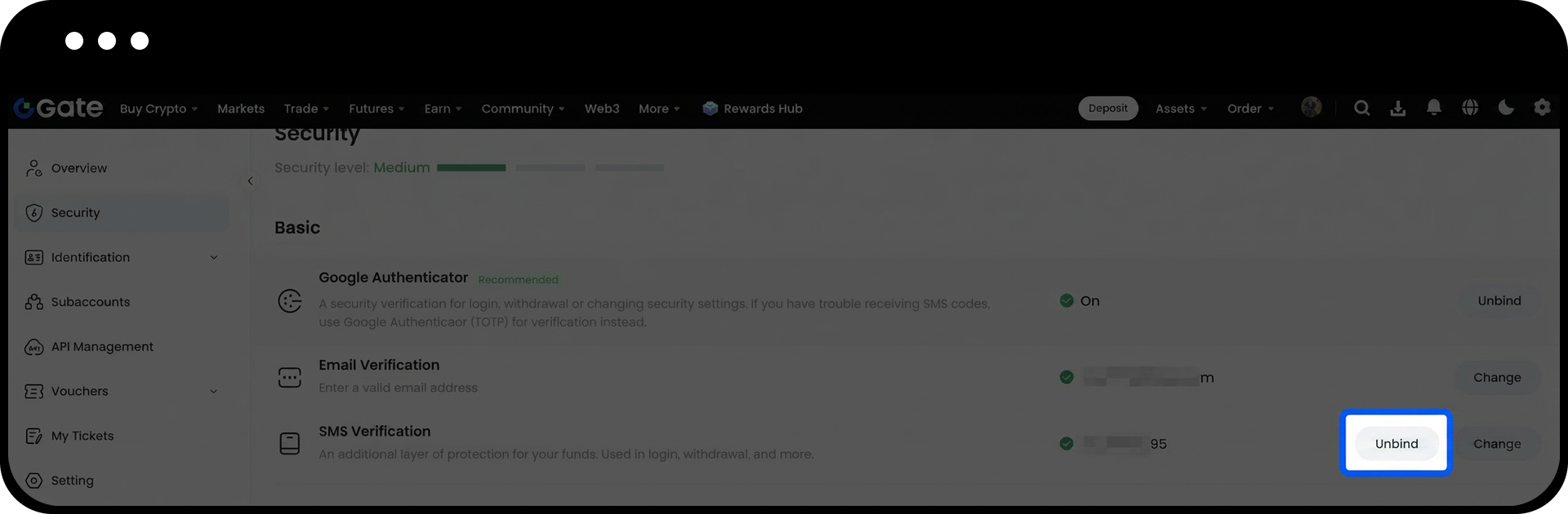
3.Complete the security verification as prompted on the page. Once confirmed, click “Confirm” to finish unbinding.
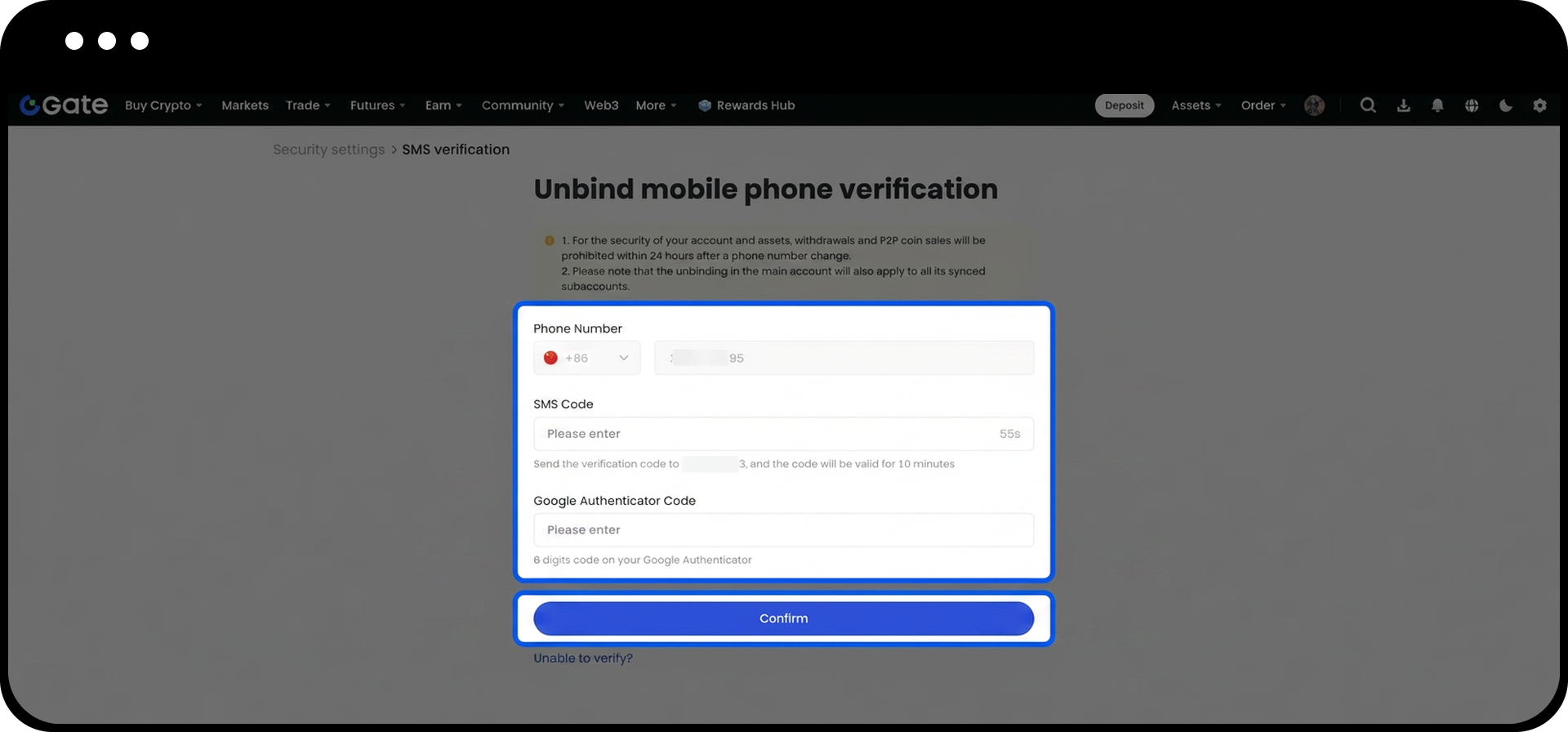
3. Reset Your Phone Number (If You Cannot Receive Verification Codes)
If your phone number is no longer active or cannot receive SMS verification codes, you can apply for a reset depending on your account login status.
1. Account Can Be Logged In Normally
If you can log in to your account, you can directly submit a phone number reset request via the security reset page.
Steps:
- Log into your account (Web or App).
- Visit the security reset page.
- Select the relevant phone number reset option.
- Follow the on-screen instructions and submit your request.
2. Account Cannot Be Logged In
If you are unable to log in via the Web platform, please use the App to submit a phone number reset request. The Web platform currently does not support submitting security reset requests while logged out.
Steps:
- Open the Gate App.
- Enter your email, username, or phone number along with your password, then click Login.
- When the system enters the security verification page, click “ Unable to verify?” at the bottom of the page.
- Follow the prompts to submit your phone number reset request.
Please note that the "Unable to verify?" option only appears after you reach the security verification page. If you haven’t reached this page, you won’t be able to submit a request.
3. Forgot Login Password and Cannot Receive Verification Codes
If you’ve forgotten your login password and your phone number cannot receive verification codes, you can submit a phone number reset request as follows:
- On the App login page, click “Forgot password.”
- Enter the phone number or email linked to your account.
- Click “Didn't receive code?”
- Choose “Reset verification method” and follow the prompts to complete your phone number reset request.
4. Review Process
After submitting your request, we will review it as soon as possible. Reviews are typically completed within 24 hours.
The result will be sent via email, so please check both your inbox and spam folder.
If you encounter any issues during the process, contact our online customer support for assistance.
Notes
- Your phone number is an important security verification method for your account. Please keep your phone number and verification code information safe.
- When submitting a reset request, ensure all information provided is genuine and accurate to facilitate a smooth review.
- After unbinding your phone number, we recommend binding a new phone number promptly to keep your account secure.
Frequently Asked Questions
Q1: Why am I not receiving SMS verification codes when binding my phone number?
A: Please check the following:
- Is the phone number entered correctly?
- Is your phone receiving a normal signal?
- Is your phone security software blocking the messages? If you still can't resolve the issue, contact Gate customer support for help.
Q2: Can I bind a new phone number immediately after unbinding?
A: Yes. Once your phone number is successfully unbound, you can immediately follow the binding process to add a new phone number—no waiting required.
Q3: How long does it take to review a phone number reset request?
A: Security reset requests are typically reviewed within 24 hours. The result will be sent via email, so please check both your inbox and spam folder.
Disclaimer
The content provided herein is for reference and educational purposes only and does not constitute any financial, investment, trading, or legal advice, nor does it constitute an offer or solicitation to buy or sell any digital assets. Gate makes no express or implied representations or warranties regarding the accuracy, completeness, or timeliness of the information contained herein. Product features, interfaces, rules, and fee structures may be updated or adjusted at any time. Please refer to the latest announcements and the actual information displayed on the Gate platform for the most accurate details.
Digital asset investments involve significant risk, and prices may fluctuate substantially. You may lose the entire amount of your investment. Please make decisions cautiously based on your own financial situation and risk tolerance after fully understanding the associated risks. If necessary, you are advised to consult an independent professional financial or legal advisor.
For more information about potential risks, please refer to Gate's Risk Disclosure and User Agreement.
